Play with your voice
Hum, sing or whistle to play an instrument, beatbox to play drums, or do both on one microphone. JamSesh can learn your own sounds too.
Hum, sing or whistle
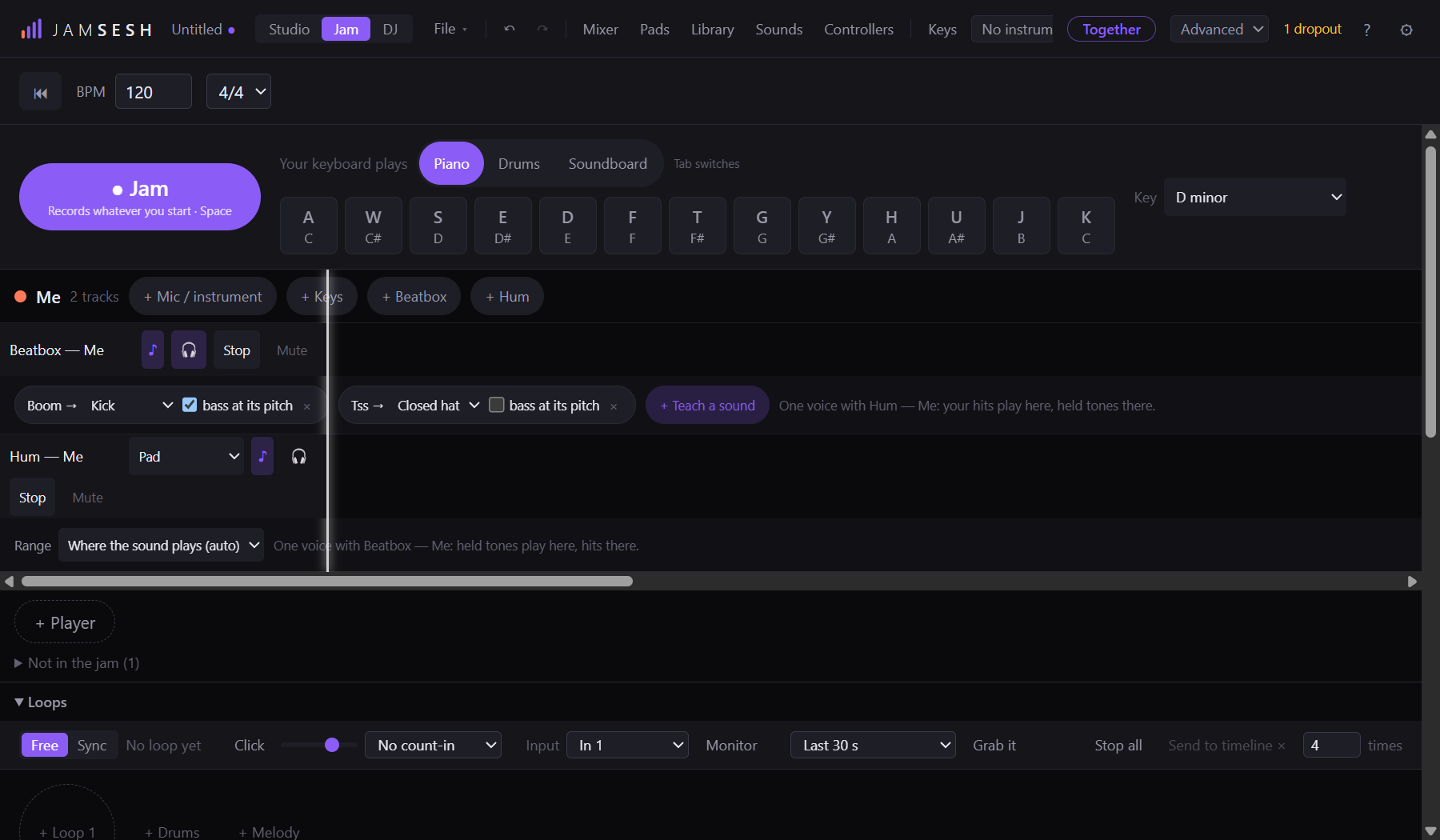
- In Jam, add a player (+ Player). Under the player, press + Hum. Without a microphone the button waits: Connect a mic.
- Hum, sing or whistle a tune. The sound follows your voice: a note plays as long as you hold it, and moves when you move to another note.
- Pick another sound in the list on the lane (for example Pad or Lead), also while you play.
- Press ● Jam to record: what you hum is kept as notes on the lane, and you can edit them later in the Studio.
Your voice itself is not heard or recorded on the lane, only the instrument it plays. Is it playing in the wrong octave? Open the lane's ♪ panel and change Range: Where the sound plays (auto), Your own pitch, or up to two octaves lower or higher.
Stay in the song's key
Next to the keyboard in the Jam view, Key decides which notes your voice is pulled to, so a slightly off note still sounds right.
- Auto (from the notes): JamSesh finds the key from the notes already in your song. It needs some notes in the song first; until then every note is allowed. It looks at the song, not at your voice, so the key never changes in the middle of a phrase.
- A key you choose, like D minor: major, minor and the pentatonic scales for every note.
- Every note (no pulling): notes are not pulled to any key: each note is the nearest note to what you sing.
Beatbox drums
- Under a player, press + Beatbox.
- Beatbox into your microphone. Kicks, snares and hats play real drums the moment you make the sound.
- Open the lane's ♪ panel to see what it plays with. At first these are the standard sounds (Kick, Snare, Hat).
The standard sounds guess what you meant from how the sound sounds, so they are right about two times in three. Teaching your own sounds (below) gets it to about nine in ten.
Both on one microphone
Add + Beatbox and + Hum under the same player, with the same microphone. They become one voice: short hits play on the Beatbox lane, held tones on the Hum lane. Both panels say so: One voice with….
Doing both at once is the hardest job for a microphone. A long, boomy beatbox sound can now and then play a short note as well, and a hum can start with a drum hit. Teaching your beatbox sounds makes the second one much rarer.
Teach it your own sounds
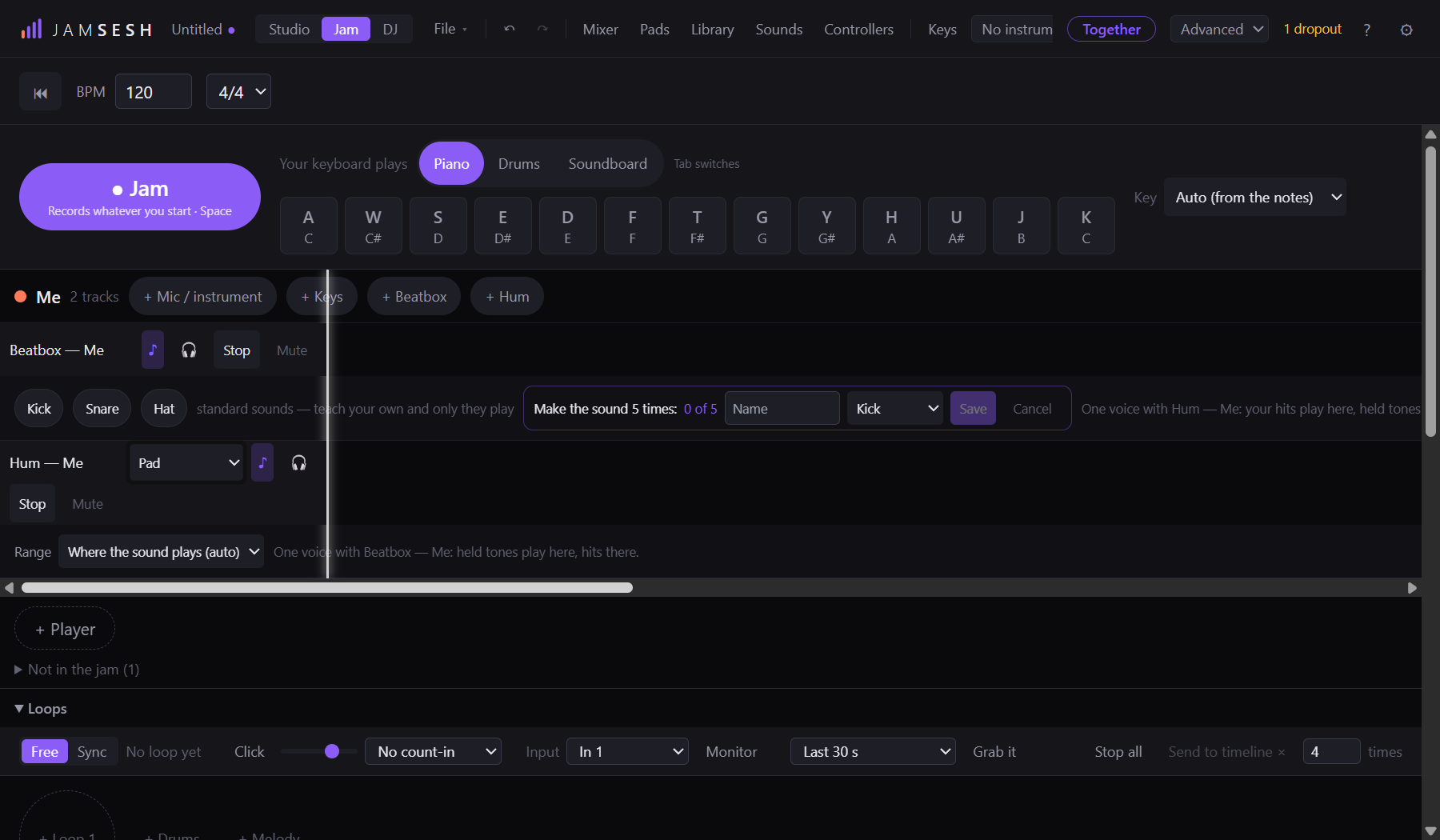
- Open the Beatbox lane's ♪ panel. The lane must be running (Stop shows on it); a stopped lane does not listen.
- Press + Teach a sound. Make the sound five times, the same way each time. 0 of 5 counts up as it hears them. The drums keep playing while you teach.
- Type a name, choose what it plays (Kick, Snare, Closed hat, Open hat, Clap, Tom, Rim or Crash), and press Save. Cancel leaves everything as it was.
- Repeat for each sound you use. Closed hat and open hat are two different sounds: teach both if you use both.
- Once you have taught sounds, only they play. A sound you did not teach does nothing, which also stops a hum from setting off drums by accident.
- Change what a sound plays in the list next to its name, or remove it with ×.
- Teach it in the way you play: the same microphone and the same distance. A voice and a microphone you did not teach with are recognised less well.
Bass beatbox
A low sound, like lip bass or a "dum", can play a bass note instead of a drum. Next to a taught sound, tick bass at its pitch: the sound then plays the Hum lane's instrument, at the pitch you made it, pulled into the song's key.
- It needs a + Hum lane on the same player and microphone. Without one, the sound plays its drum as usual.
- Pick a low instrument on the Hum lane (for example Bass) so the notes sound like a bass.
- Each bass note is short, about a quarter of a second, so quick lip bass does not run together.
- A low sound is not recognised until a moment after it starts, so kicks on a voice with this ticked come a little later (about a twentieth of a second). It is off until you tick it.
This is the newest and roughest part of voice playing. Lip bass without a clear low pitch can be missed. Teach the sound a few times in your own style, and try it before you rely on it in a take.
Speakers or headphones
With speakers, JamSesh keeps its own sound from playing your voice: it filters what comes out of the speakers out of the microphone, so the song does not trigger your lane. With headphones that is not needed: press 🎧 on the lane and the filter goes off, which is a little more sensitive. Press it again to go back.
Does it miss your voice, or play by itself? ? then Save a voice sample (last 30 s)… saves what your microphone heard, nothing else, so you can send it to us.