Jam: play live, loops, voice and pads
Play live like a band: everyone gets their own tracks, whatever you start is recorded while the music keeps going, and loops are there when you want them.
Start a jam
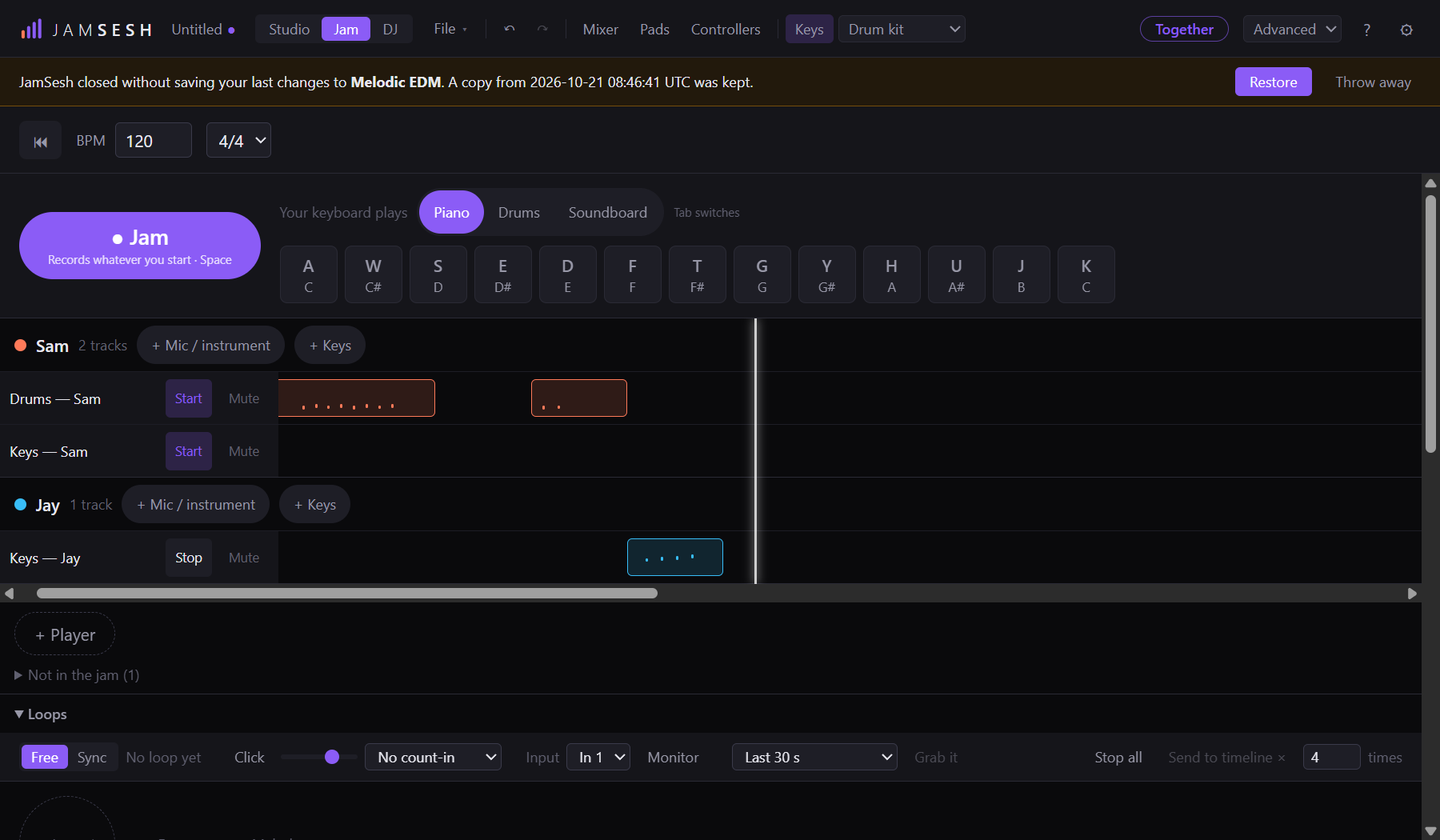
- Switch to Jam. Press + Player and type a name.
- Under that player, press + Keys to play the computer keyboard, or + Mic / instrument for a microphone, guitar or other input. It is heard right away.
- Press ● Jam (or Space). The jam records everything that is started, also tracks added while it plays.
- Stop on a track stops it (it goes quiet; what it played stays). Start brings it back. Mute silences it for a moment.
- Press ■ Stop (or Space) to end the jam. What everyone played is on their own lanes.
| Your keyboard plays | Keys |
|---|---|
| Piano | A W S E D F T G Y H U J K play the notes from C; Z and X change the octave |
| Drums | A kick, S snare, D closed hat, F clap, G tom, H crash, J rim, K open hat |
| Soundboard | A, W, S, E, D… press pad 1, 2, 3, 4, 5… |
Tab switches between them. The keys light up as you play.
Loop what you just played
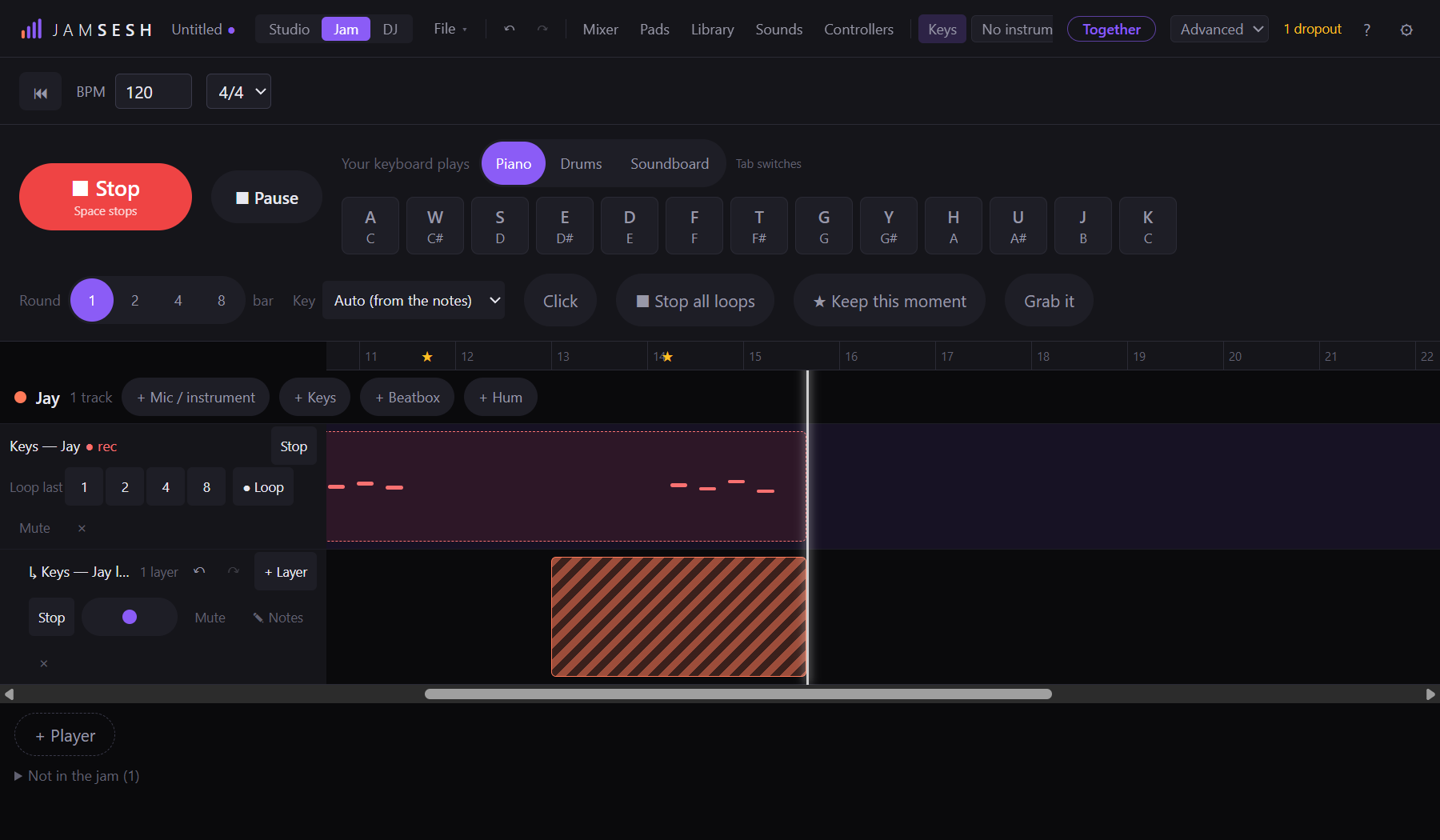
- Play something on a track with ● Jam running.
- On the track, under Loop last, press 1, 2, 4 or 8: the last bars you played become a loop, as its own lane under the track. It starts on the next round.
- Stop and Start on the loop's lane close and open it again. ■ Stop all loops closes every loop that is playing.
Loops never start or stop in the middle of a bar: they wait for the next round. Choose how long a round is next to Round: 1, 2, 4 or 8 bars.
To listen to one stretch over and over, drag across the bar numbers above the lanes. The stretch snaps to whole bars, and Loop (next to ▶ Play) plays it again and again. Press Esc to let go. A click on the bar numbers jumps there.
Hold ● Loop on a track to record a loop while you hold it, or tap it to start and tap it again to stop. It starts and stops on the round, and the button counts down to it.
Keep what's good
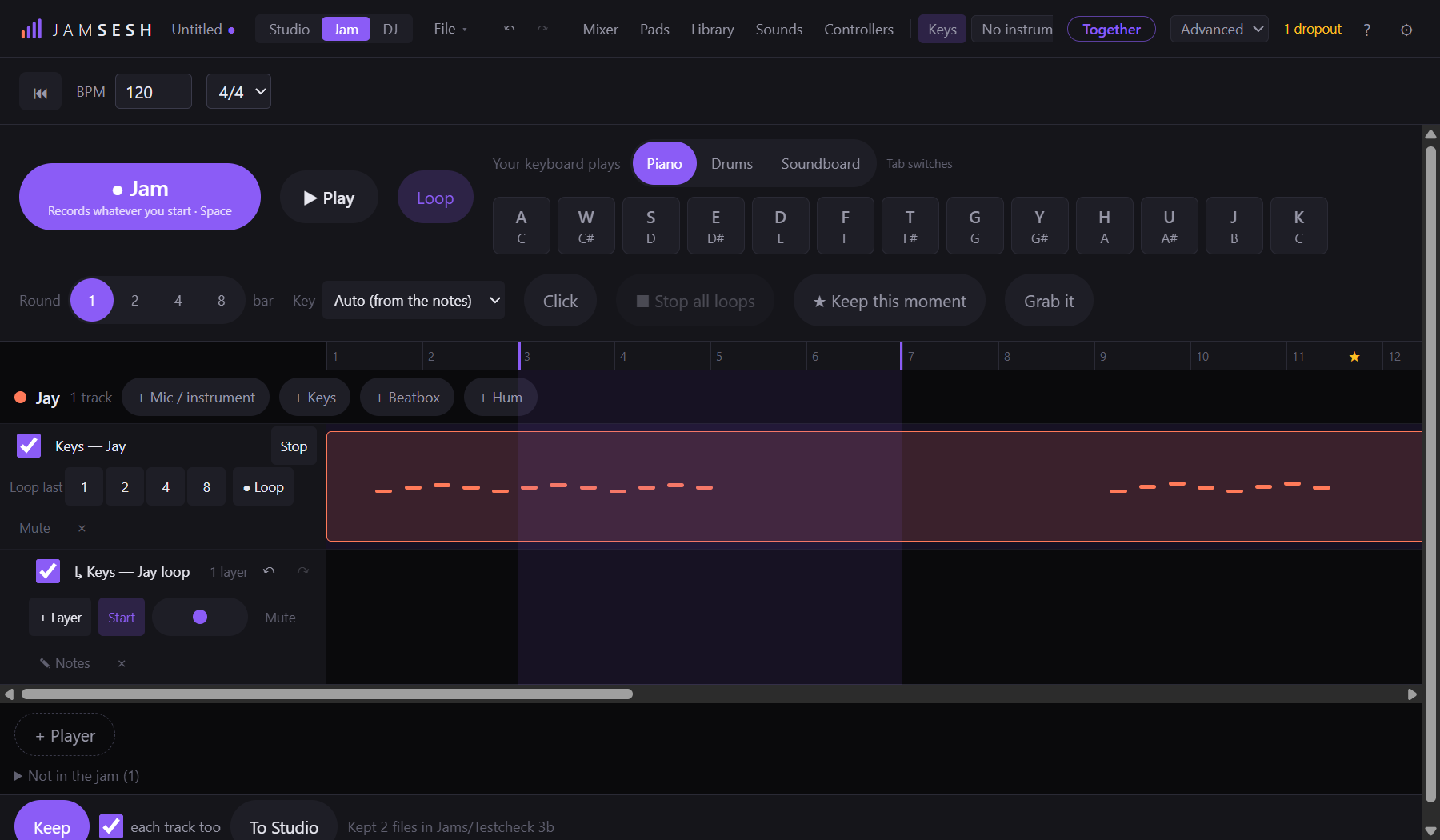
- Press ★ Keep this moment when you hear something you like. A star appears on the bar numbers, with the player's name on it. Press a star to select the bars around it.
- Drag across the bar numbers to select a stretch. A tick box appears on each track; tick the tracks you want, or tick none to keep them all.
- At the bottom, press Keep. JamSesh saves that stretch as a sound file in your library, in Sounds under Jams, in a folder with the jam's name. With each track too ticked, every ticked track gets its own file as well.
- A track that plays nothing in the stretch gets no file of its own.
- Every file says who played it: the player's name is in the file and shows as the credit in your library.
- Nothing is ever overwritten: keeping the same stretch again makes a new file next to the first.
To Studio turns the selected stretch into a song: a new project called <jam name> song, saved next to your other projects, with each player's tracks named like Keys — Jay. Press Open in Studio to go there. The jam stays as it was.
Save a jam
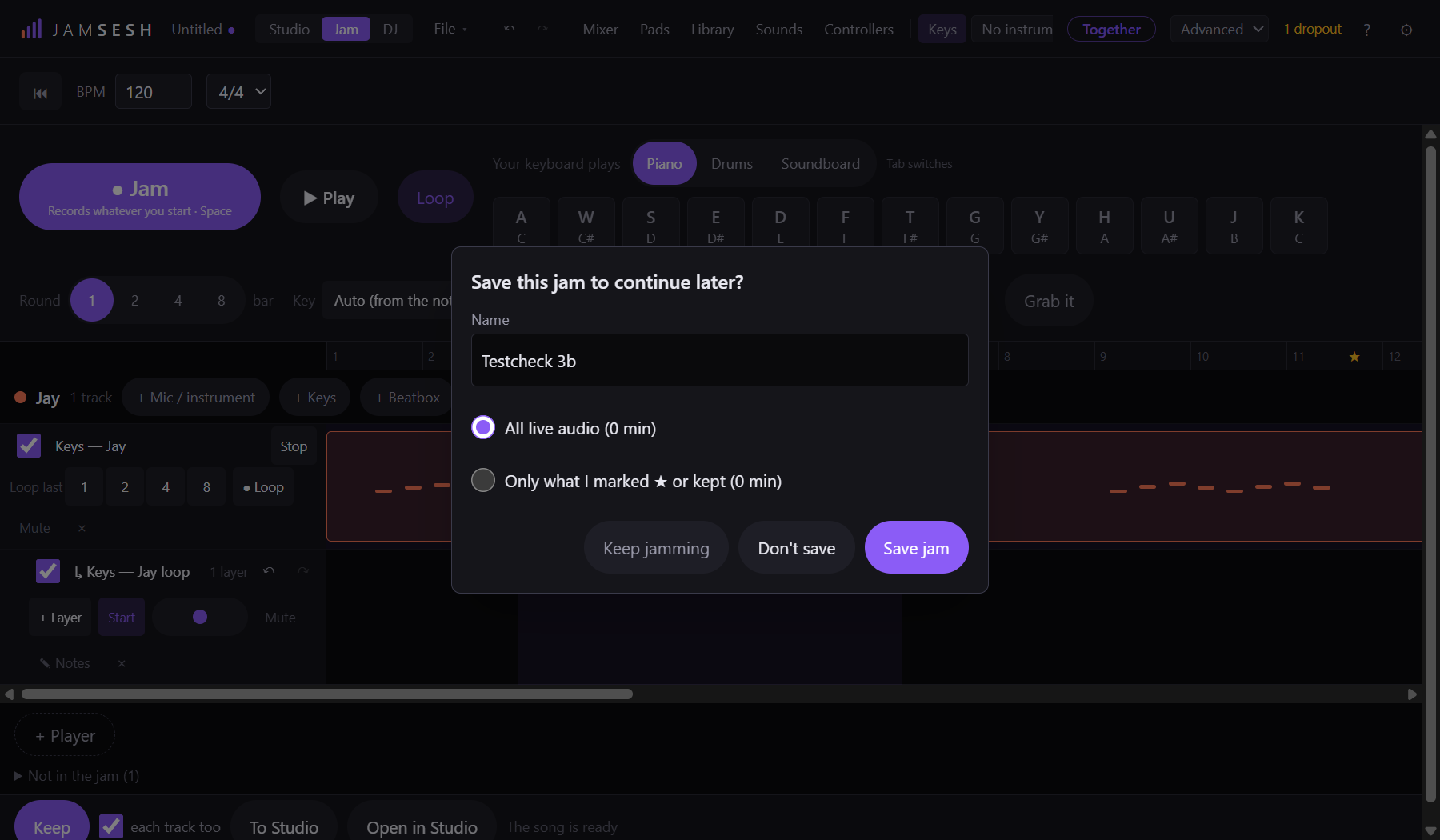
A jam is not kept by itself. When you leave the Jam view with something in it (you switch to Studio or DJ, open or start another project, or close JamSesh) it asks Save this jam to continue later?
- Type a name if it asks for one. A jam that is already saved just saves again under its own name.
- Choose what to keep: All live audio keeps everything that was recorded from microphones and instruments in this jam. Only what I marked ★ or kept keeps only the stretches you starred or kept, which is much smaller. Each choice says how many minutes it is.
- Press Save jam. The jam is saved in the JamSesh folder, in Jams, as <name>.jam with a folder <name> jam next to it for the recordings.
- Keep jamming closes the question and leaves you in the jam.
- Don't save leaves the jam without saving it, and the recordings it made since you last saved are deleted. What you kept with Keep stays in your library.
- If you are still recording, JamSesh waits for the last take to land before it asks.
Open a .jam file again with File ▾ and Open: it opens in the Jam view, with your players, loops and stars, at the end of the jam where you left off.
Beatbox and hum
- Under a player, press + Beatbox. Beatbox into your microphone: kicks, snares and hats play real drums the moment you make the sound.
- Press + Hum and hum or sing a tune: an instrument follows your voice. Pick another sound in the list on the lane, also while you play.
- Press ● Jam: what you beatbox or hum is recorded as notes on your lane, at the moment you made the sound. You can edit them later in the Studio.
Your voice itself is not recorded or heard on these tracks, only the drums or the instrument it plays. Without a microphone the buttons wait: Connect a mic. More about keys, your own sounds and bass beatbox in Play with your voice.
Speakers are fine: JamSesh keeps its own sound from playing your beatbox or hum. Using headphones? Press 🎧 on the lane.
Does it miss your voice, or play by itself? ? then Save a voice sample (last 30 s)… saves what your microphone heard, nothing else, so you can send it to us.
Your first loop
- In Jam, open Loops. Choose your microphone under Input.
- Want a count-in? Choose 1 bar count-in, and turn on Click for a metronome.
- Press the round pedal on a loop slot to start recording. Play or sing.
- Press it again to close the loop: it plays back at once. The length of the first loop sets the tempo for the others.
- Press again to overdub (add a layer), and again to play.
| Control | What it does |
|---|---|
| ↶ / redo | Take off the last layer, or put it back |
| Stop | Stop this loop |
| Clear | Empty the slot |
| Stop all | Stop every loop |
| Free / Sync | Free: loops follow the first one. Sync: loops follow the song's tempo |
Beatbox and hum into a loop
- On an empty slot, press + Drums (or set a slot's capture to Beatbox → drums).
- Record your beatbox: kicks, snares and hats.
- JamSesh turns it into a drum loop. Press Drums to open the grid and fix notes: Sensitivity, Quantise, and a sound per row.
+ Melody (or Hum → melody) does the same for a hummed or sung tune: it becomes notes on a synth. Snap to key keeps them in key, Transpose moves them up or down, Hear voice plays your original along.
Grab what you just played
Played something great without recording? JamSesh always keeps the last two minutes of your input. Choose how much (Last 10 s up to Since the last pause) and press Grab it.
From loops to a song
Send to timeline puts the loops in the Studio, repeated as many times as you choose, so you can arrange them into a song.
Pads (soundboard)
- Press Pads at the top.
- Drag a sound file onto a pad (Drop a sample).
- Press ⚙ on the pad to name it, give it a key (Press a key…) and choose the Mode: One-shot, Gate (while held) or Loop (toggle).
Make instrument on a pad turns its sound into an instrument you can play on the keys.
Playing with the computer keyboard
Turn on Keys at the top and choose a sound next to it. The keys A W S E D F T G Y H U J K are a piano octave; Z and X move an octave down or up. A MIDI keyboard always plays the chosen sound.