Studio
The timeline: record your voice or guitar, write parts in the piano roll, and shape clips until the song is right.
Playing and moving around
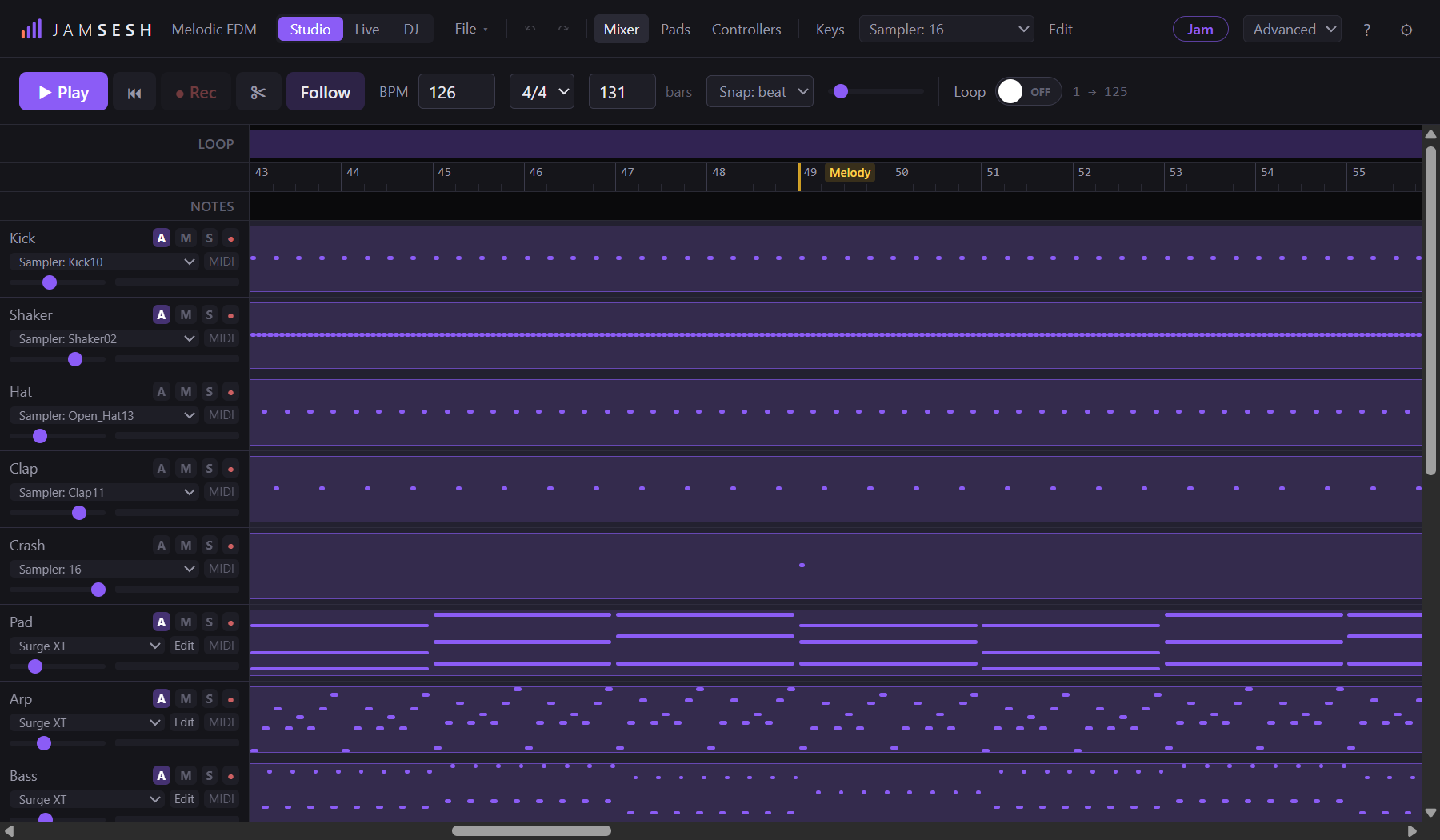
| Control | What it does |
|---|---|
| ▶ Play / ⏸ Pause | Play from the playhead, or pause. |
| ⏮ | Stop and go back to the start. |
| ● Rec | Record on the armed tracks (see below). |
| Follow | The view scrolls along with the playhead. |
| BPM | The tempo. Type a value, or scroll on it: one step, Shift for ten, Alt for a tenth. |
| 4/4 | The time signature. |
| Length | How many bars the song has. |
| Snap: beat | What clips and notes snap to: bar, beat or off. Hold Alt while dragging to place freely. |
| Zoom | Zoom the timeline in and out. |
| Loop | Play the loop region over and over. |
Click the ruler to move the playhead. Drag across the loop row to set a loop region; drag the region or its edges to change it.
Kinds of tracks
Under the tracks, Add a track offers three kinds:
| Button | For |
|---|---|
| + Audio | Sound files and clips: drag WAV, MP3, FLAC, OGG, M4A or AIFF files from Explorer onto it. |
| + Input | Recording a microphone, guitar or anything plugged into your interface. |
| + Instrument | Notes, played by a synth, the drum kit, a sampler, a plugin or a hardware synth. |
Each track header has the same small buttons:
| Button | Meaning |
|---|---|
| M | Mute |
| S | Solo: hear only the soloed tracks |
| ● | Arm: this track records |
| MON | Hear the input through JamSesh while you play (input tracks) |
| A | Show the automation lane (Advanced) |
| C | Cue: listen on outputs 3–4, for headphones (only with a 4-output interface) |
| MIDI | Which keyboard plays this instrument track (Advanced) |
Double-click a track's name to rename it.
Recording your voice or an instrument
- Make sure your microphone or interface is set up in ⚙ under Inputs.
- Press + Input. In Advanced you can choose the input channel and tick stereo.
- Press ● on the track to arm it. Turn on MON if you want to hear yourself.
- Press ● Rec, play or sing, and press ⏸ Pause to stop. The take appears as a clip.
Recording a guitar? The Tune button on an input track opens the tuner (Advanced).
Writing notes
- Press + Instrument. It starts on the Keys synth; pick another sound in the track's instrument menu: Bass, Lead, Pluck, Pad, Drum kit, a sampler, External synth (MIDI) or Plugin instrument….
- Drag across the empty lane to draw a note clip as long as you like (double-click makes four bars), or arm the track (●) and play the notes in: on a MIDI keyboard, or with Keys on your computer keyboard.
- Double-click a note clip to open the piano roll. Choose the length of new notes under New notes (1/16 to 1 bar).
- Click to add a note (you hear it on the track's instrument), drag it to move it, drag its edge to change its length, right-click to delete it.
- A drum track opens a drum grid instead: one named row per drum, click a step to add or take away a hit, Shift-click for a hard hit. Repeat copies the first bars over the whole clip.
- On the timeline, drag a note clip to move it and drag its right edge to make it longer or shorter; right-click for more.

Play a melody in
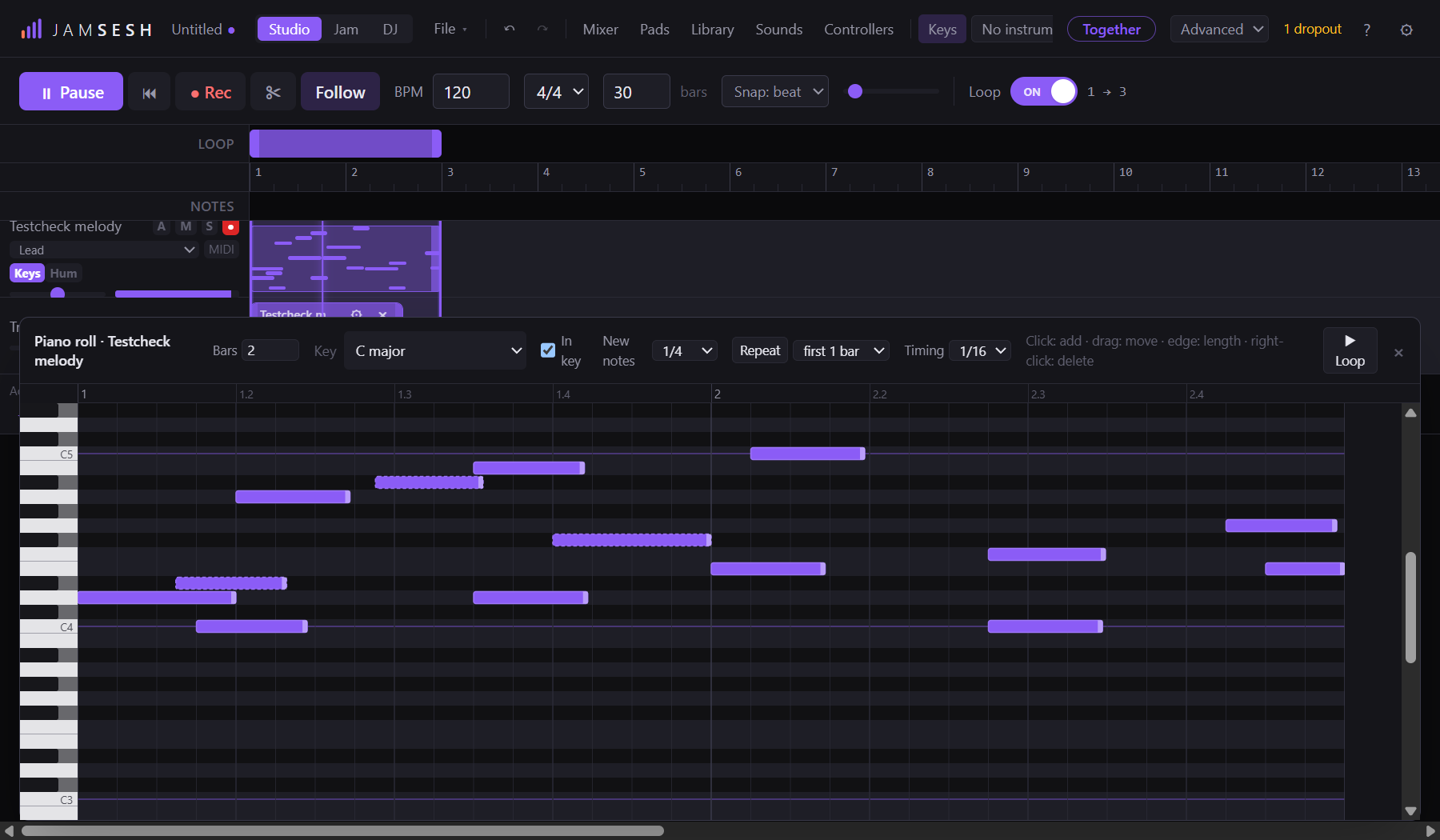
- Double-click a note clip to open the piano roll. Press a key on the keyboard at its left edge: you hear that note on the track's instrument for as long as you hold it, and you can slide to other keys.
- Click in the grid to add a note, or drag one to move it: you hear each note as you place it.
- Press ▶ Loop (or Ctrl+L) to play this clip on repeat. Press it again to pause.
- Arm the track (●), press Rec and play on your keyboard (Keys on your computer keyboard, or a MIDI keyboard): the notes go into the clip you have open. The clip keeps playing round, and every round adds to it.
Stay in key. Pick the song's key next to Key in the piano roll. Notes outside it are dimmed and drawn dashed. With In key ticked, a new note lands on the nearest note of the key, and dragging a note moves it along the notes of the key. Hold Alt to put a note anywhere. Untick In key to turn it off; JamSesh remembers your choice on this computer.
Timing. Notes you play into an open clip land on the nearest 1/16. In Advanced mode, Timing next to Repeat lets you pick Off, 1/16 or 1/8. A plain Rec with no clip open keeps your notes exactly as you played them.
Hum it. On a melody track, Keys and Hum choose what plays it: your keyboard, or your voice (you need a microphone under ⚙). Switching between them keeps the voice's settings. In Advanced mode, a recording you already have can become notes too: open the clip's inspector (⚙ on the clip) and press Notes from this hum. The notes land in a new clip on the armed melodic track (or the first one), in the song's key and moved to the instrument's range.
Playing into a clip is one undo: press undo once and the whole take goes.
Shaping clips
| Do this | To |
|---|---|
| Drag the middle of a clip | Move it |
| Drag its outer edge | Stretch it, like tape: faster is higher, slower is lower (set it back with PITCH in the inspector) |
| Drag the small square at the top | Fade in or out |
| Drag the bar just inside an edge | Trim the start or the end |
| Alt-click | Split the clip where you click |
| ✂ | Slice: click twice on a clip to cut out a section |
| × | Delete the clip |
The ⚙ on a clip opens its inspector: PITCH, VOLUME, PAN, a pan LFO (LFO RATE, LFO DEPTH, LFO SHAPE), and loop to repeat the clip.
Polish: clean up a take
In the clip inspector, the Polish slider removes noise and hum, evens out levels and tames harsh sounds in one go. In Advanced, Tune gently corrects the pitch of a voice.
- Set Polish (and Tune if you like).
- Press Polish. A polished copy is made; the original stays.
- Switch between Original and Polished to compare. Changed the sliders? Press Update.
Notes on the timeline
The notes row under the ruler holds notes about the song. Double-click it to write one ("the guitar sounds too thin here"). If you work with an AI agent, it reads these notes, works on them and answers. Click a note to read the answer, Mark done or Delete it.